

 See My Latest Article on HelloNation
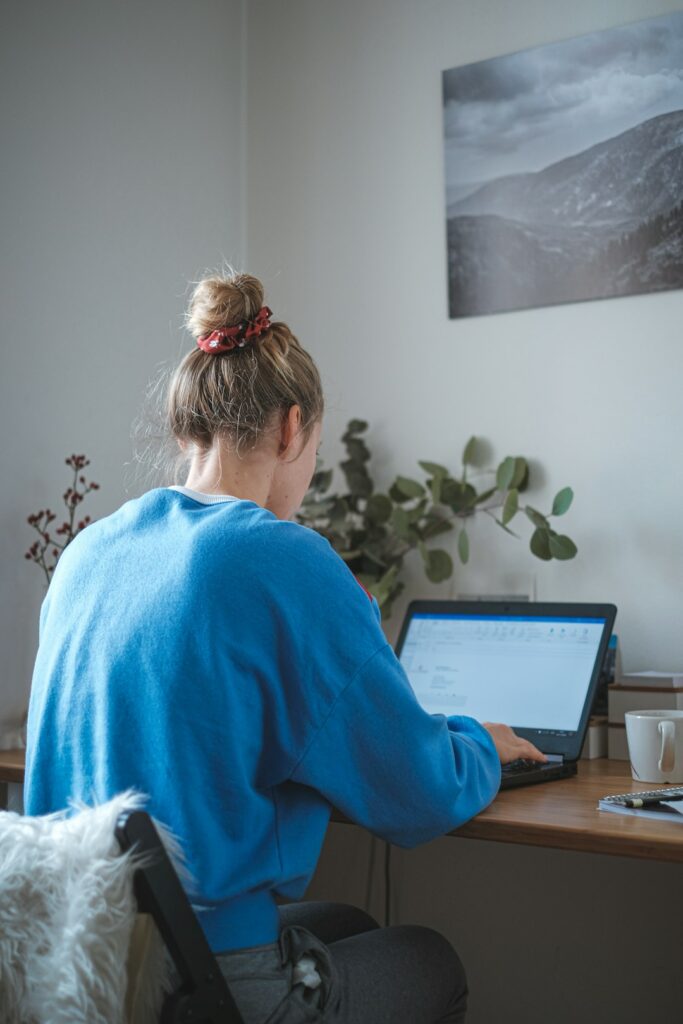
Working remotely can be productive and convenient, but it also moves part of a person’s work environment outside the protections of a traditional office. A home internet connection, personal laptop, shared living space, or public wireless network can create security risks if devices and accounts are not carefully managed.
For residents in Hobbs, NM, remote work may involve long-distance collaboration, variable internet conditions, outdoor heat and dust, or households where several people share the same connection. A practical security routine helps protect work files, personal information, and the accounts connected to both.
What is the biggest security risk when working from home?
The biggest risk is usually not a highly technical attack. It is an everyday mistake, such as reusing a password, clicking a convincing message, leaving a laptop unlocked, or allowing sensitive information to remain visible in a shared space.
Remote workers should protect three areas:
- The device used for work
- The accounts used to access files and services
- The home network connecting those devices to the internet
Security should be treated as a series of small habits rather than a single software installation. A strong password cannot fully protect an account if a login code is shared through an email scam. Antivirus software cannot prevent someone from sending confidential information to the wrong recipient.
How should remote workers secure their laptops and phones?
Use only supported operating systems and keep them updated. Security updates repair known weaknesses that attackers may already understand. Enable automatic updates when possible, especially for the operating system, web browser, office applications, and mobile device.
A work device should also have:
- A strong screen lock using a password, PIN, fingerprint, or other supported method
- Automatic locking after a short period of inactivity
- Full-device encryption when available
- A reputable security program that remains enabled
- Separate user accounts when other household members use the same computer
- Regular backups of important files
Avoid storing work documents permanently on a personal device unless the employer’s rules allow it. A lost or damaged laptop can expose information if files are saved locally without protection.
Phones deserve the same attention as computers. Many work accounts use a phone for login verification, password recovery, or email access. Set a secure lock screen, install updates promptly, and avoid lending an unlocked phone to others.
How can someone recognize a remote-work phishing message?
Phishing messages are designed to create urgency, fear, or curiosity. They may claim that an account will be closed, a payment is overdue, a document needs approval, or a password must be reset immediately.
Before clicking a link or opening an attachment, check:
- Whether the message was expected
- Whether the sender’s address is genuine rather than merely familiar
- Whether the request involves passwords, financial information, gift cards, or access codes
- Whether the wording creates unusual pressure
- Whether the link points to the correct website when viewed without opening it
- Whether the request can be confirmed through a separate communication method
Do not use a phone number or reply address included in a suspicious message to verify it. Instead, open the known application or website directly, or contact the person through a previously trusted channel.
A genuine-looking message can still be fraudulent. Attackers often copy logos, writing styles, and conversation details from real organizations.
Should remote workers use multifactor authentication?
Yes. Multifactor authentication, often called MFA, adds a second verification step after a password. Depending on the account, that step may involve an authentication application, security key, text message, or approval on a trusted device.
MFA is especially valuable for:
- Email accounts
- Cloud storage
- Banking and financial services
- Work portals
- Password managers
- Social media accounts used for business communication
An authentication application or physical security key is generally safer than relying only on text messages, although any available MFA method is usually better than using a password alone.
Never approve a login request that was not initiated personally. Repeated unexpected prompts may indicate that someone already has the password and is trying to pressure the account owner into approving access.
Is home Wi-Fi safe enough for remote work?
Home Wi-Fi is usually safer than open public Wi-Fi, but it still needs basic protection. Change the router’s default administrator password and use a modern wireless security setting. The network password should be long, unique, and not based on an address, family name, pet, or easily guessed phrase.

The router should be updated when firmware updates are available. If the equipment no longer receives updates, replacement may be necessary for security reasons.
Place internet-connected devices on a separate guest network when the router supports it. This can help isolate visitors, smart televisions, cameras, and other household equipment from work computers.
Public Wi-Fi should be treated as untrusted. If it must be used, avoid sensitive transactions, confirm that the device firewall is active, and use an employer-approved secure connection such as a virtual private network. A VPN does not make phishing links safe, and it does not replace updates or MFA.
How can households protect confidential information?
Remote work often takes place in kitchens, bedrooms, living rooms, or other shared areas. Privacy depends on both technology and physical surroundings.
Use headphones for sensitive conversations when appropriate. Position screens away from windows and high-traffic areas. Lock the device before stepping away, even for a short time. Do not leave printed records, handwritten passwords, access badges, or removable storage where visitors or children can reach them.
Be cautious during video meetings. Check what appears behind the camera, silence notifications that may display private information, and avoid discussing confidential matters where unrelated people can hear.
In dusty or very warm conditions, keep computers in a clean, shaded, well-ventilated location. Excess heat and dust can shorten equipment life and cause unexpected shutdowns, which may lead to data loss or interrupted work.
What should someone do after a lost device or suspected account breach?
Act quickly. Disconnect a compromised device from the network if doing so will not destroy needed evidence, then report the issue through the employer’s established security process. Change affected passwords from a different trusted device, beginning with email and other accounts that can reset passwords.
Additional steps may include:
- Revoking active sessions from account settings
- Removing unfamiliar login methods or recovery addresses
- Reporting suspicious messages to the appropriate organization
- Checking financial and other sensitive accounts for unusual activity
- Preserving suspicious emails, alerts, and screenshots for review
- Following any required breach-reporting or workplace procedures
Do not hide a mistake because it seems embarrassing. Early reporting can allow access to be blocked before information is misused.
A practical weekly remote-work security routine
A short weekly check can catch problems before they become serious:
- Install pending updates.
- Confirm that backups are completing.
- Review recent account sign-ins.
- Remove unused applications and browser extensions.
- Check that MFA remains enabled.
- Confirm that the router and work devices are physically secure.
- Review shared folders and links for unnecessary access.
- Test that important files can be restored from backup.
The goal is not to create a complicated home security program. It is to make secure behavior routine enough that an unusual message, login alert, or device problem stands out quickly.