

 See My Latest Article on HelloNation
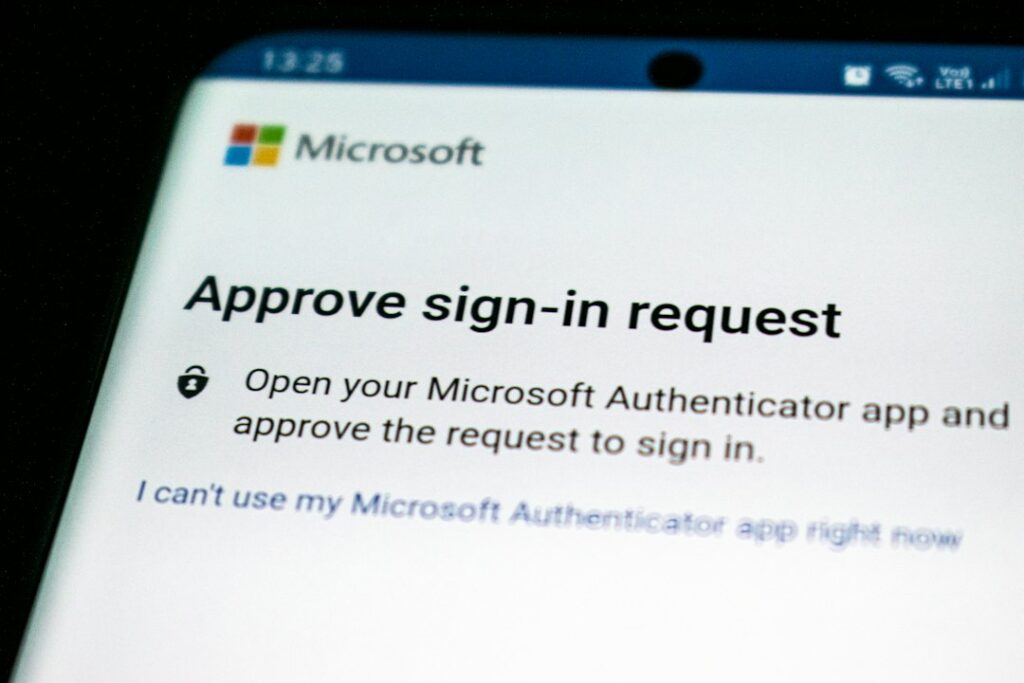
Two-factor authentication, often called 2FA, adds a second proof of identity when someone signs in to an account. Instead of relying only on a password, the account also asks for a temporary code, approval on a trusted device, a security key, or another verification method.
For residents in Hobbs, NM, this extra step can help protect email, banking, healthcare, school, work, cloud storage, and social media accounts. A stolen password may give an intruder the first piece of information, but two-factor authentication can prevent access without the second factor.
What does two-factor authentication mean?
Two-factor authentication requires two different types of evidence before allowing access. These factors generally fall into three categories:
- Something known: A password, PIN, or passphrase
- Something owned: A phone, security key, or other trusted device
- Something inherent: A fingerprint, facial scan, or other biometric characteristic
A password plus a code sent to a phone uses two different factors: something known and something owned. A password plus a second security question usually does not provide the same protection because both items may be information that another person could discover.
Two-factor authentication is different from two-step verification in a strict technical sense, although many services use the terms interchangeably. The practical goal is the same: require an additional check beyond the password.
Which accounts should use it first?
Start with accounts that could be used to reset other passwords or expose sensitive information. Email accounts usually deserve the highest priority because password-reset messages often go there.
Next, protect:
- Banking and payment accounts
- Medical and health-related accounts
- Work and school accounts
- Tax, insurance, and government-related accounts
- Cloud storage containing personal documents
- Social media accounts that could be used to impersonate someone
- Accounts holding saved payment details
A compromised email account can create a chain reaction. An intruder may search old messages for account numbers, reset links, travel information, or personal conversations. Securing the primary email account first can reduce the risk to many other accounts.
How do you turn on two-factor authentication?
The exact wording varies, but the general process is similar across most websites and apps.
1. Sign in directly
Open the service through its official app or by typing the known web address into the browser. Avoid enabling security features through a link in an unexpected email or text message. A fraudulent sign-in page may be designed to capture both the password and the verification code.
2. Open account security settings
Look for a section labeled Security, Login and security, Privacy and security, or Account protection. The two-factor option may be listed as:
- Two-factor authentication
- Two-step verification
- Multi-factor authentication
- Login verification
3. Choose a verification method
Common options include an authenticator app, text message, email code, phone call, security key, or approval notification.
An authenticator app generally creates temporary codes on the device and does not depend on cellular service at the moment the code is generated. Text messages are convenient, but they can be exposed if a phone number is transferred through fraud or if someone gains control of the associated mobile account.
For highly sensitive accounts, a physical security key or an approved passkey can provide stronger protection than text-message codes.
4. Confirm the setup
The service may display a QR code, provide a setup key, send a code, or ask for a test approval. Follow the instructions carefully. If using an authenticator app, scan the code only inside the legitimate security settings for the account.
5. Save backup or recovery codes
Many services provide a list of one-time recovery codes. These codes can be used if the phone is lost, replaced, damaged, or unavailable.
Store the codes in a secure location separate from the phone. A locked password manager, a printed copy kept in a private location, or another protected method may be appropriate. Do not store recovery codes in an unprotected note labeled with the account name.
Which two-factor method is safest?
The safest practical method depends on the account and the person using it, but the general order of preference is:
1. Passkey or physical security key
2. Authenticator app
3. Approval notification from a trusted device
4. Text message or phone call
5. Email verification

Text messages are better than using only a password, but they are not immune to fraud. Someone may attempt to take over a phone number, persuade a user to reveal a code, or use information from another breach to impersonate the account holder.
An authenticator app is often a useful balance of security and convenience. It can continue producing codes when cellular service is weak or unavailable, which may matter during travel, severe weather, power interruptions, or other disruptions affecting local connectivity.
What should you do if a code arrives unexpectedly?
Do not approve an unfamiliar sign-in request and do not share the code. An unexpected code often means someone is attempting to sign in, reset a password, or enroll a new device.
Change the account password by opening the service directly rather than using a message link. Review recent sign-ins, connected devices, recovery email addresses, phone numbers, and third-party applications. Remove anything unfamiliar.
If the same password was used elsewhere, change it on those accounts as well. Password reuse allows one stolen password to affect multiple services.
How can households avoid being locked out?
Before replacing a phone, changing a phone number, or resetting a device, update the two-factor settings for important accounts. Confirm that a backup method works and that recovery information is current.
A household may also benefit from keeping a simple, private record of:
- Which accounts use two-factor authentication
- Which device receives approvals or codes
- Where recovery codes are stored
- Who is authorized to manage shared accounts
Do not share one person’s personal verification method with everyone in the household unless the account is intentionally shared and the arrangement is secure. Separate accounts with individual logins provide clearer control and make it easier to remove access when circumstances change.
What mistakes reduce the protection?
Two-factor authentication is not a substitute for safe account habits. Avoid these common mistakes:
- Approving a sign-in request simply to make a notification disappear
- Giving a verification code to someone who calls, texts, or emails unexpectedly
- Using the same password for multiple accounts
- Keeping recovery codes in a public or unlocked location
- Ignoring unfamiliar devices listed in account settings
- Relying on an outdated phone number or email address
- Disabling 2FA because a message appears inconvenient
Legitimate support personnel should not need a temporary sign-in code from an unexpected caller. Treat the code as proof of access, similar to a password.
Does two-factor authentication protect every device?
It protects the account, not every device automatically. A computer or phone can still be affected by malware, theft, unsafe downloads, or an unlocked session.
Use screen locks, install operating system updates, keep security software active, and avoid signing in on shared or public devices when possible. If a device is lost, use another trusted device to sign out the missing device and change important passwords.
For households managing remote work, online classes, personal records, and connected devices, enabling two-factor authentication on the most important accounts is a practical starting point. The process usually takes only a few minutes, but the recovery details should be handled with the same care as the password itself.